Importing Trip Data
Overview
In v2.1, users have the ability to import previous run trips through the Cost Calculator in which the Fully Allocated Cost of those trips will calculate.
Import Trips
Importing previously run trips or trips that you want to see the fully allocated cost for is simple and fast; to import trips, please follow these steps outlined below.
1. Download Import CSV Template
The Cost Calculator allowed format for imports is a CSV file. Please use the formatted table below to batch upload trips.
View All CSV Headers
- tripName
- customerNames
- modeName
- originAddress
- originCity
- originState
- originPostcode
- destinationAddress
- destinationCity
- destinationState
- destinationPostcode
- directHoursDuration
- directMileDistance
- tripPrice
- dmvPrice
- totalPrice
- companyName
- invoiceTo
- billingName
- eventName
- issuedDateIso
- startDateIso
- billTo
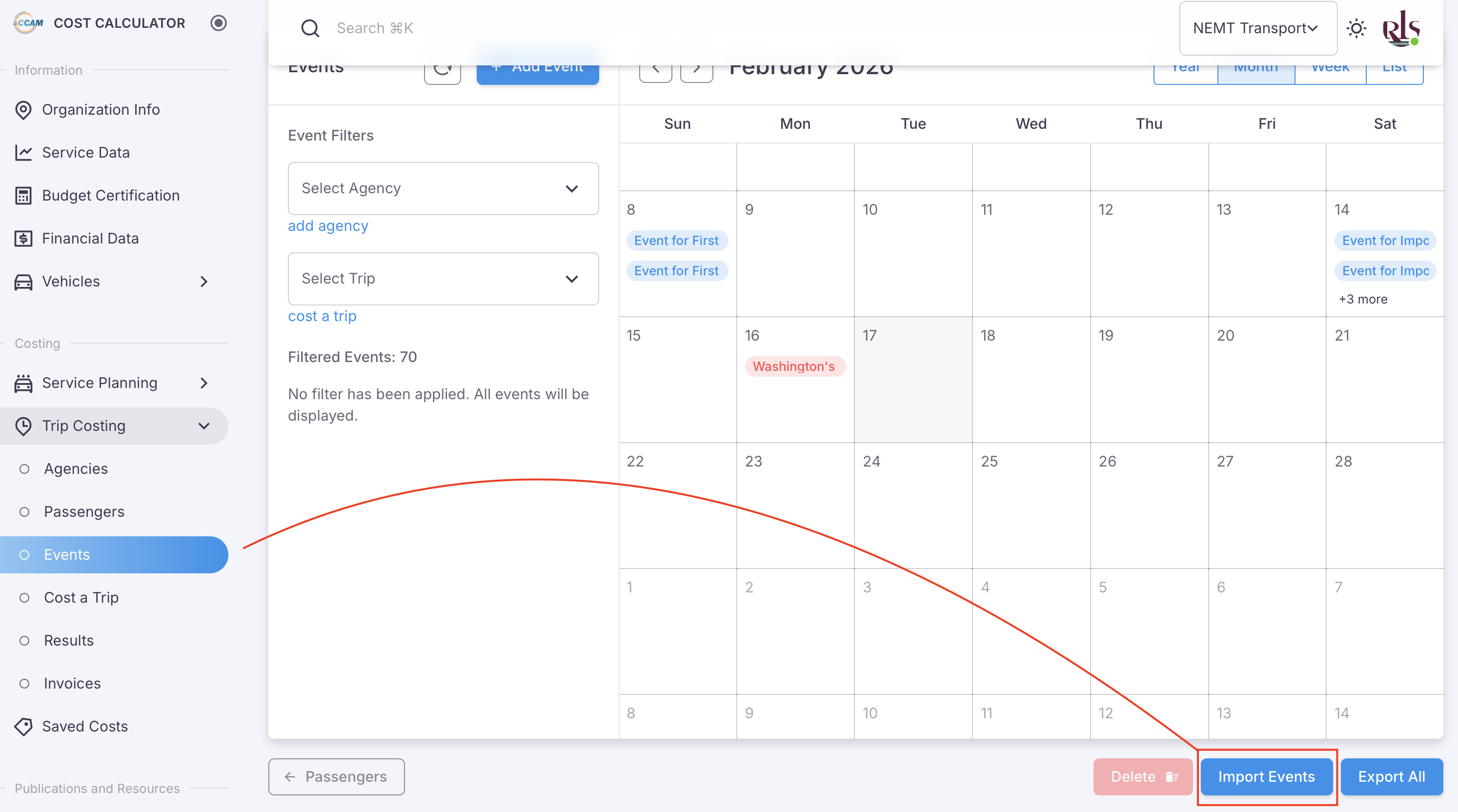
- Go to the Events page under trip costing
- Located at the bottom of the table, select the button labeled "Import Events" (Image below)
2. Update the template with your information
There will be five rows remaining of information that you want to keep; shown in the table below.
| tripName | customerNames | modeName* | originText | destinationText |
| Example Trip Name | John Doe|Jane Doe | Public or Specialized Transit | 8080 High Pointe Drive, Newburgh, Indiana 47630, United States | 201 North 3rd Street, Vincennes, Indiana 47591, United States |
Of the four remaining rows of data you only need to edit three rows.
1. tripName - Custom label to identify the trip in the system. It is NOT recommended that the passenger's name be used for the trip to avoid possible PII being entered into the application.
2. customerNames - This is the passengers name or unique identifier how you label your passengers in our system. In the example shown above, we use a numerical ID to identify the passenger; in the example of an NEMT transport provider, they may choose to use the passengers medicaid ID rather than their name.
3. *modeName - Do not edit the data in this row. This will not upload the data properly and you will not be able to calculate the fully allocated cost on those trips.
4. originText - The address of where the trip is originating from
5. destinationText - The address of where the trip destination is located.
6. companyName - The agency in which this trip has been assigned
7. invoiceTo - The agency and address information that is included on an invoice
8. eventName - Custom names for the event being imported, this is separate to the main trip name
9. issuedDate - Date the invoice is to be issued
10. startDate - Date the trip for the invoice started
It is possible that the mapping system might not recognize the address and needs to be formatted in a different manner. Please see the section below, regarding uploading your files for more information on solutions to fixing this.
3. Upload Your File
Once you have entered the desired trip information you want to upload you will want to follow these steps.
1. Return to the Trips Results screen
2. Scroll to the bottom of the table and select the button 'Import Trips' 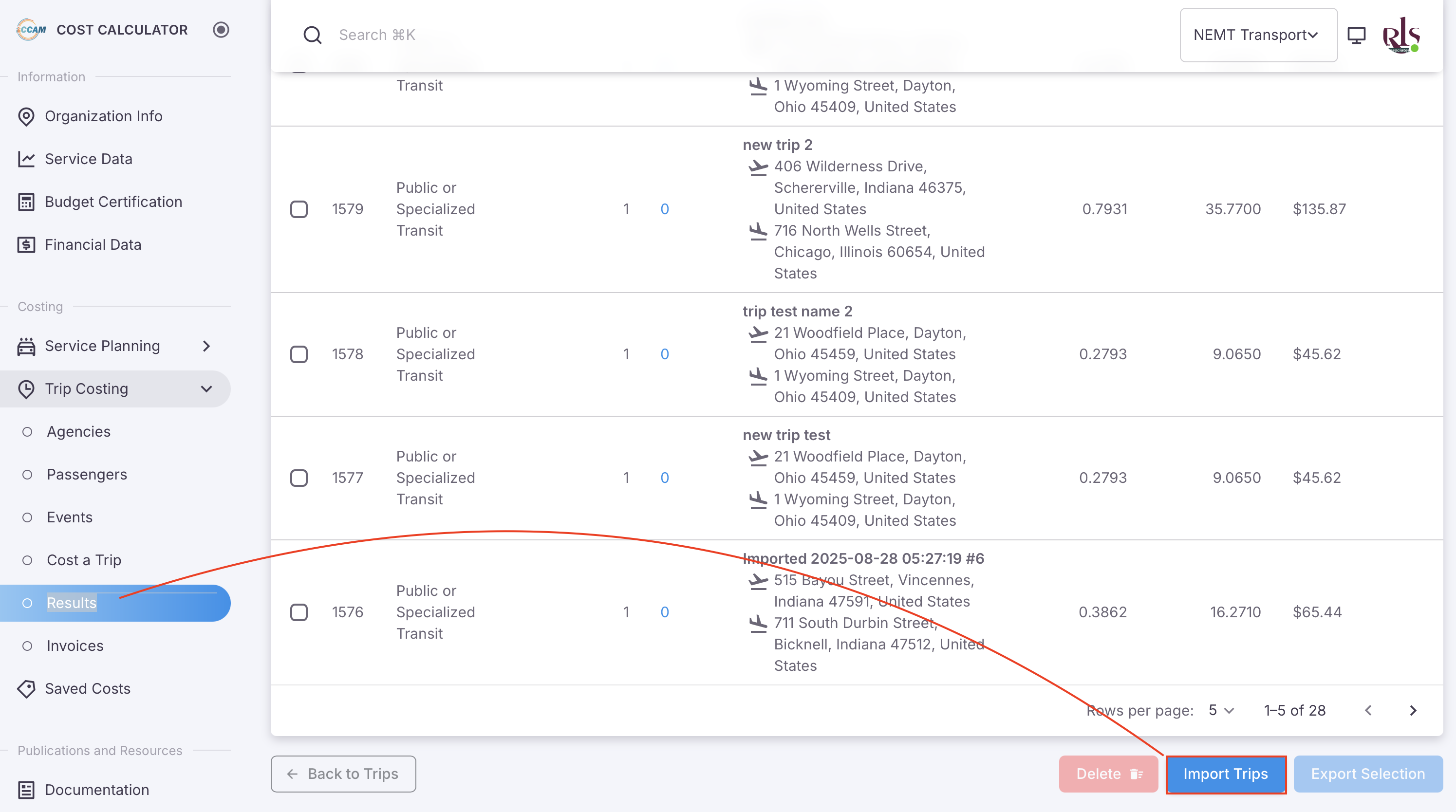
3. A popup window will appear and you can either drag and drop your CSV file into the box or you can select it from your computer's folder structure. 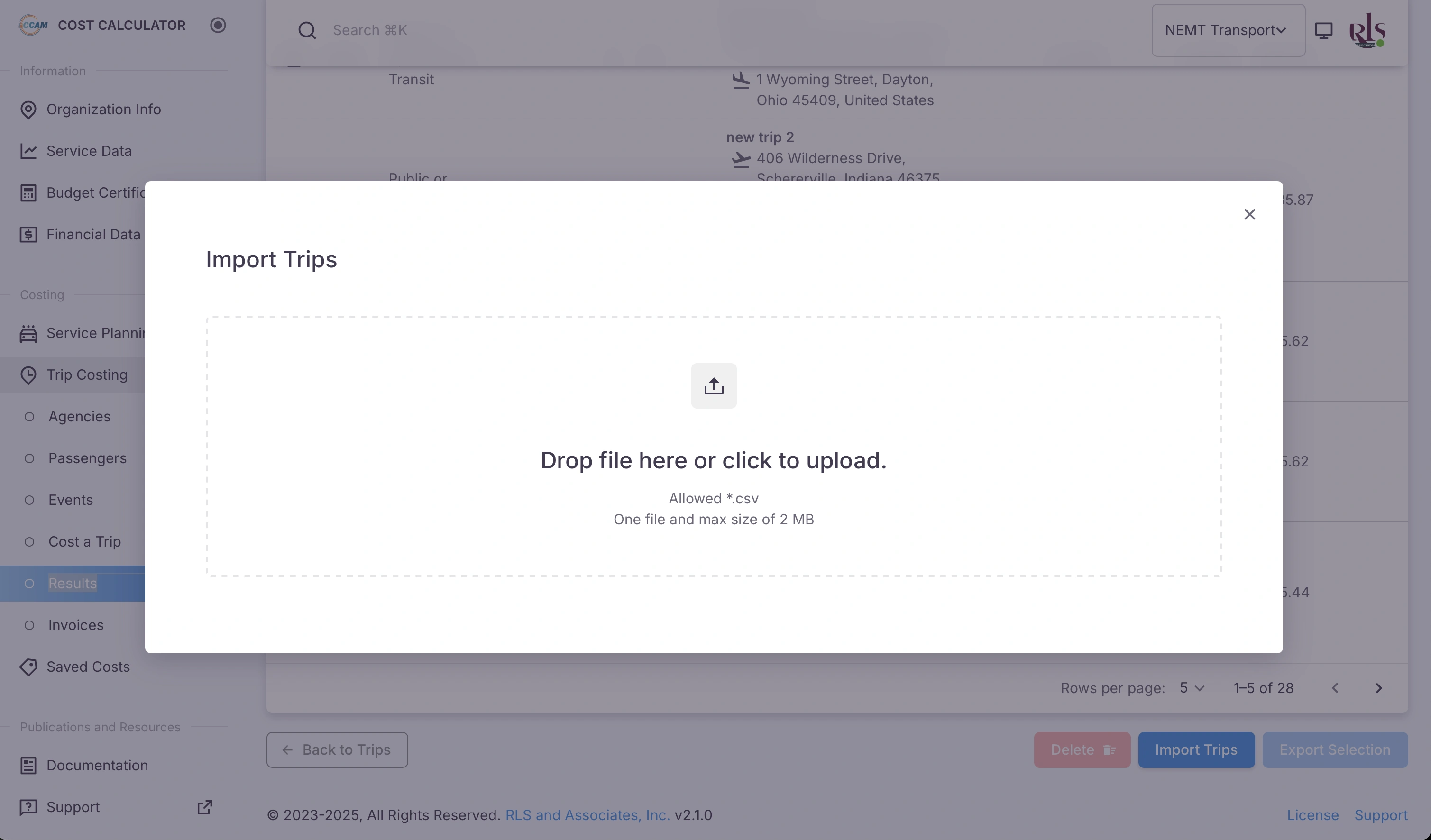
4. Once you've selected and uploaded your file, you should see your file for review in the window 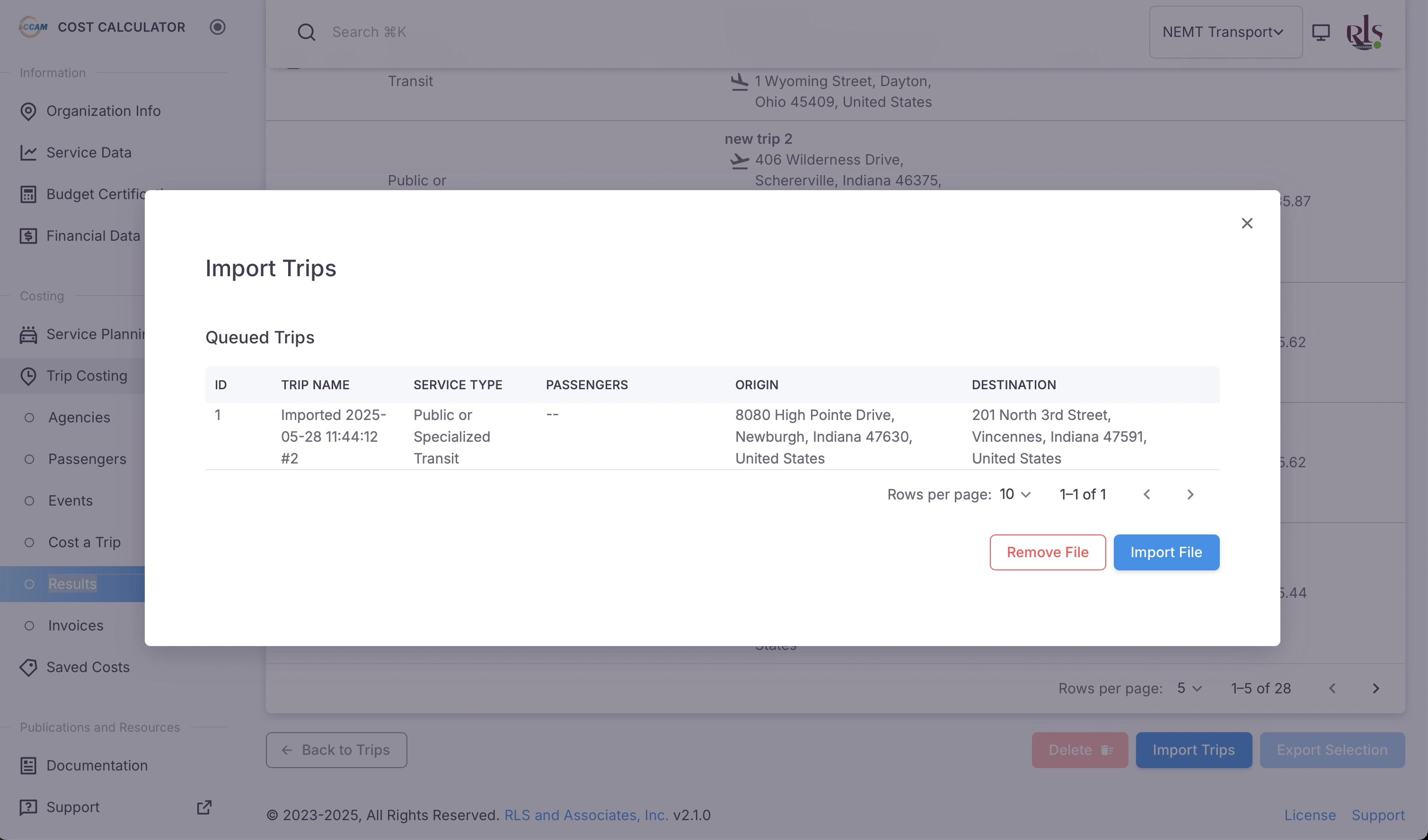 In the example image shown above, a passenger was not designated and will auto-default to the default passenger in the system.
5. If the trip data looks appropriate, select the button labeled - "Import the file" in the bottom right of the popup window 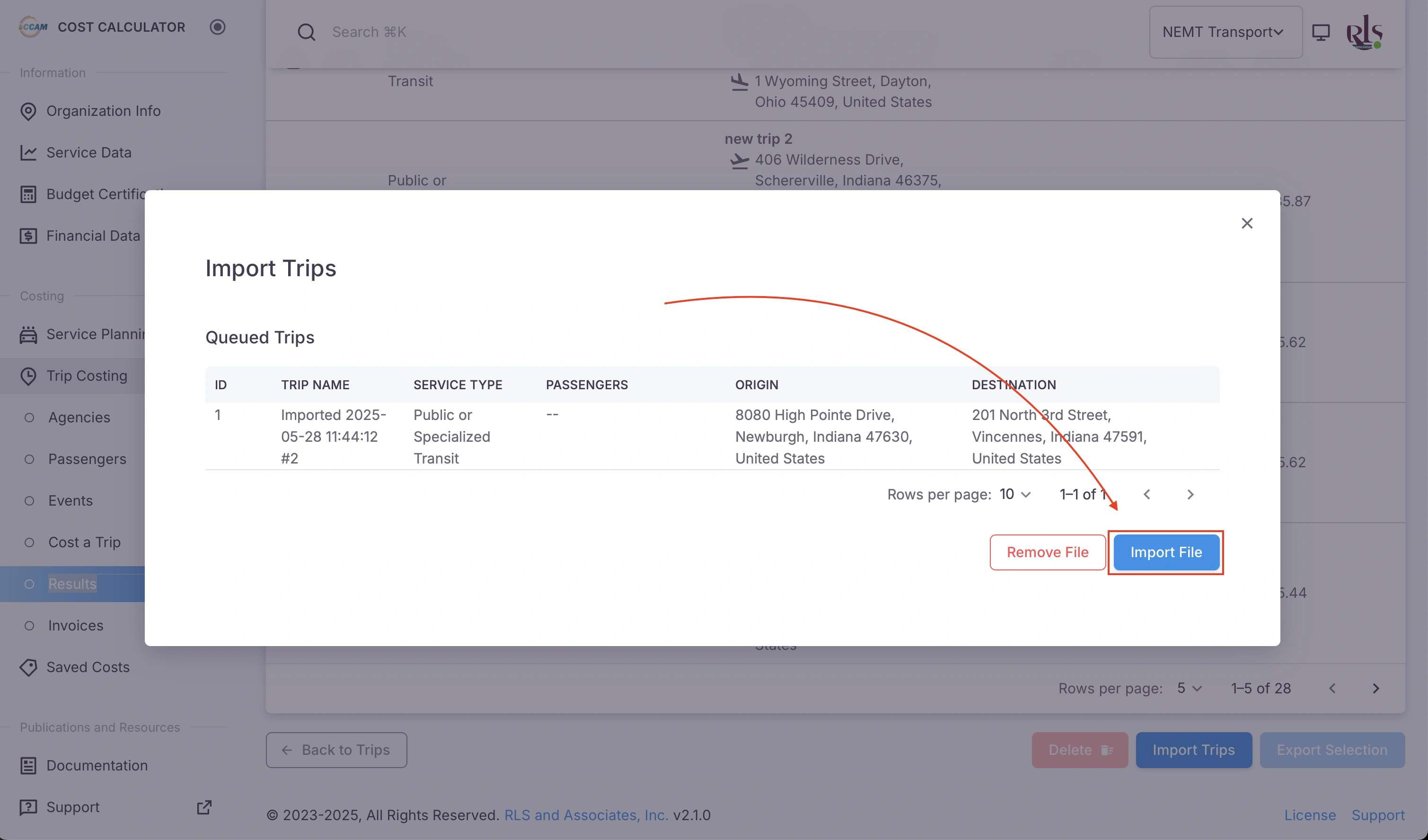
6. If your file successfully imported you will see a screen with the following message. Depending on how many trips you've run, that will be reflected in the numerical placeholder in the example below. For example, if you imported 100 trips, the resulting total will be 100 lines have been successfully imported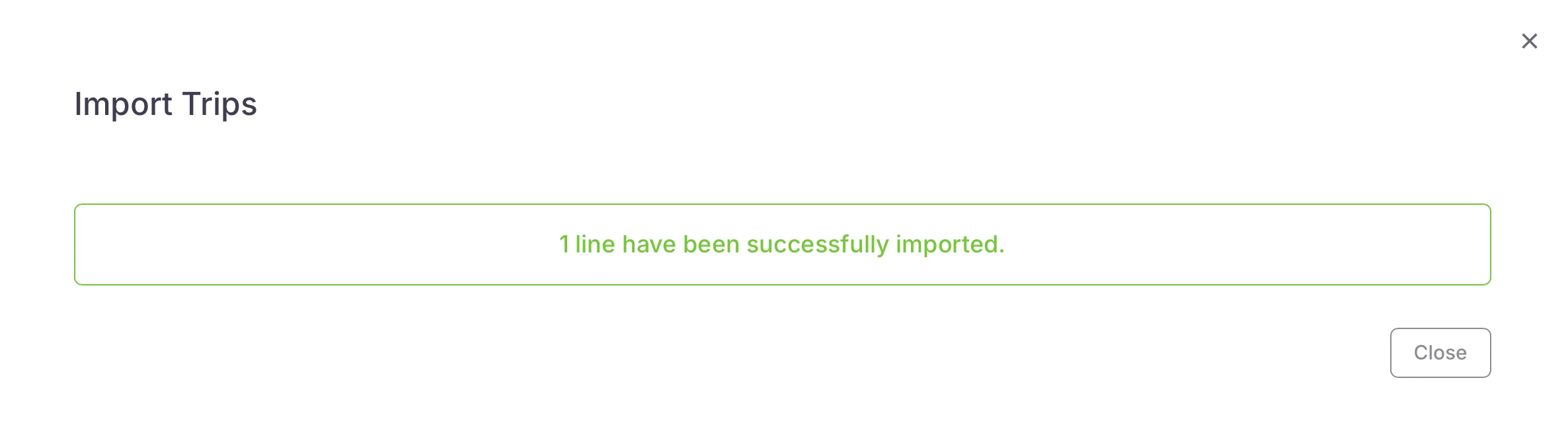
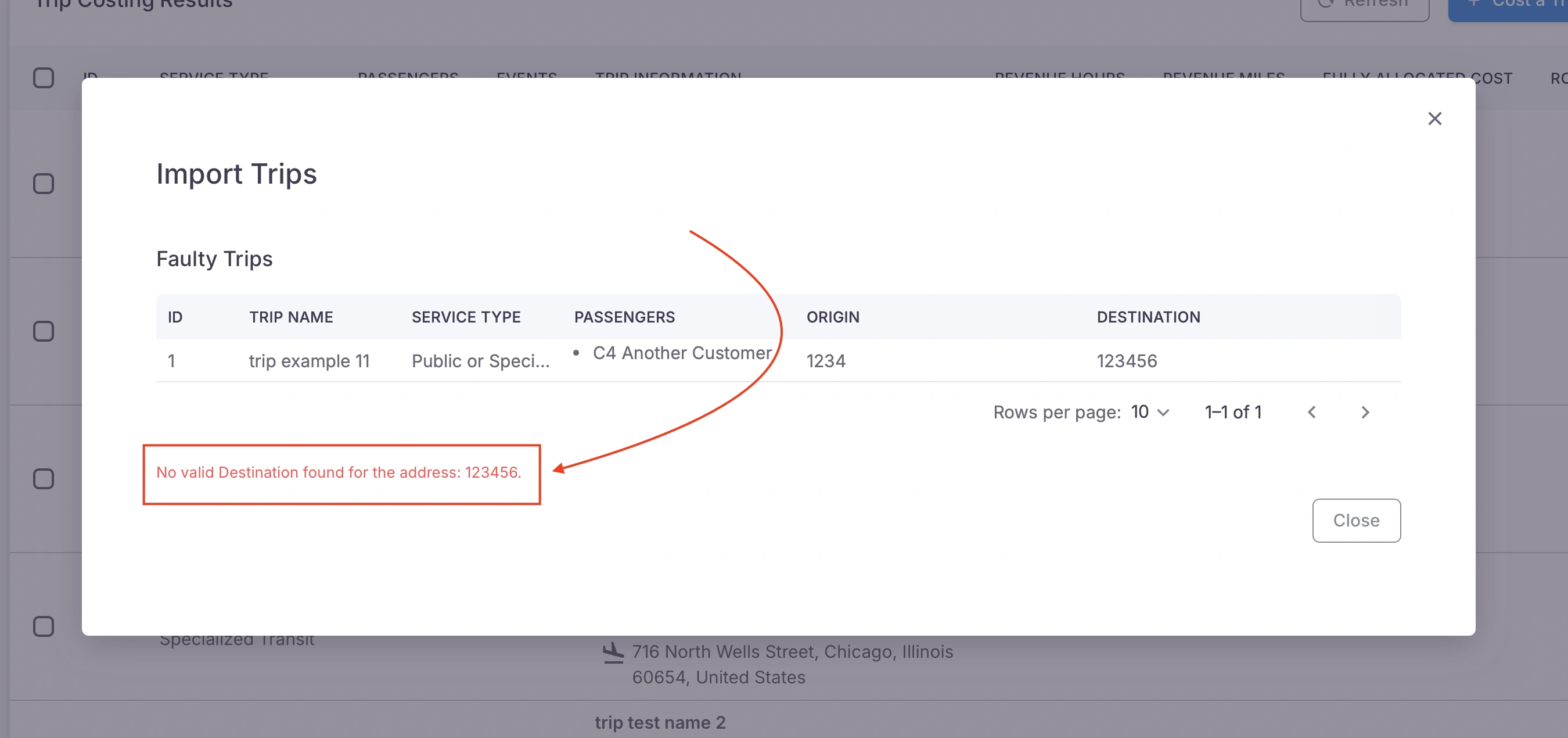
7. If your trips did not successfully import into the system, you will see the following image below; In the example shown, the origin and destination addresses are both improperly formatted and need to be fixed.