Financial Data
Dashboard
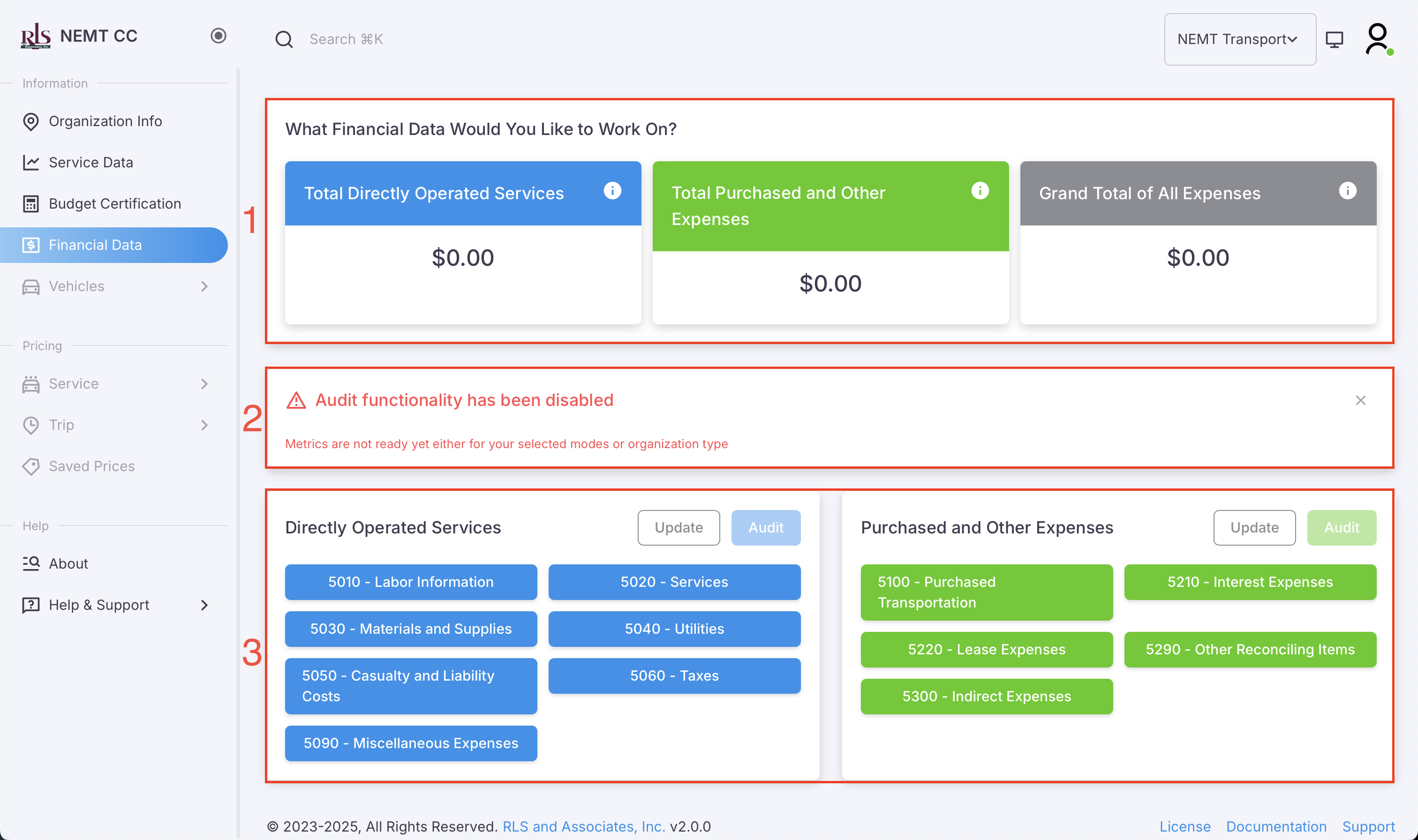
The Financial Dashboard page initially will consist of three sections; two of which will be permanently shown to you. In each section there are available features to help navigate you through the financial part of the application.
The three sections of the financial dashboard page are as follows and shown in the image below;
- Financial Data Sub-total
- Audit Feature Notification (for disabled or organization types not currently allowed)
- Direct links to the various financial tables
Financial Data Overview
At the top of the page is the Financial Data Overview section which will show the sub-totaled amount for each section, listed below and the grand total of both expense categories;
- Total Directly Operated Services
- Total Purchased and Other Expenses
Section Features
- Total of the category or grand total of both categories
- Information on the category highlighted

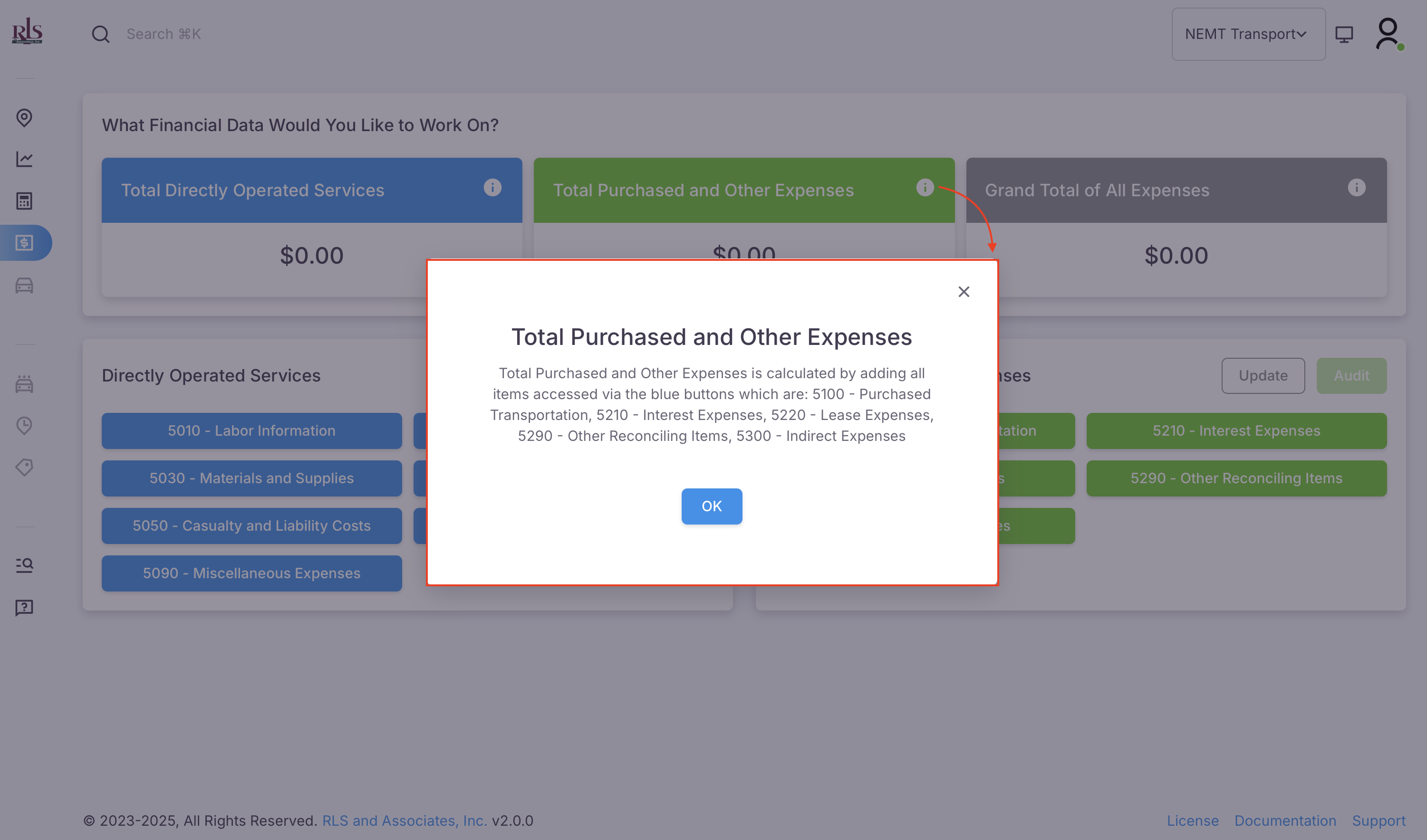
In the above image, if you click the 'info' icon in the upper right corner of widget box a popup will show (image below) and highlight the relevant information for that widget. In the example below, clicking the icon in 'Total Purchased and Other Expenses' will bring up the information relevant to that widget.
Audit Feature Notification (BETA)
THIS FEATURE IS CURRENTLY IN BETA and should not be used to validate the legitimacy of the data input. This feature has been enabled for user feedback in a production setting.
Not all Organization types are able to access the auditing feature but anyone can test it. If you wish to test this feature, please visit the 'AUDIT' help documentation section or by CLICKING HERE.
To help users with the validity of the data entered into the system, the Transportation Cost Calculator App has an in-built auditing feature in which the system will notify the user with one of three prompts as to whether or not the entered financial data meets industry standards for that entry.
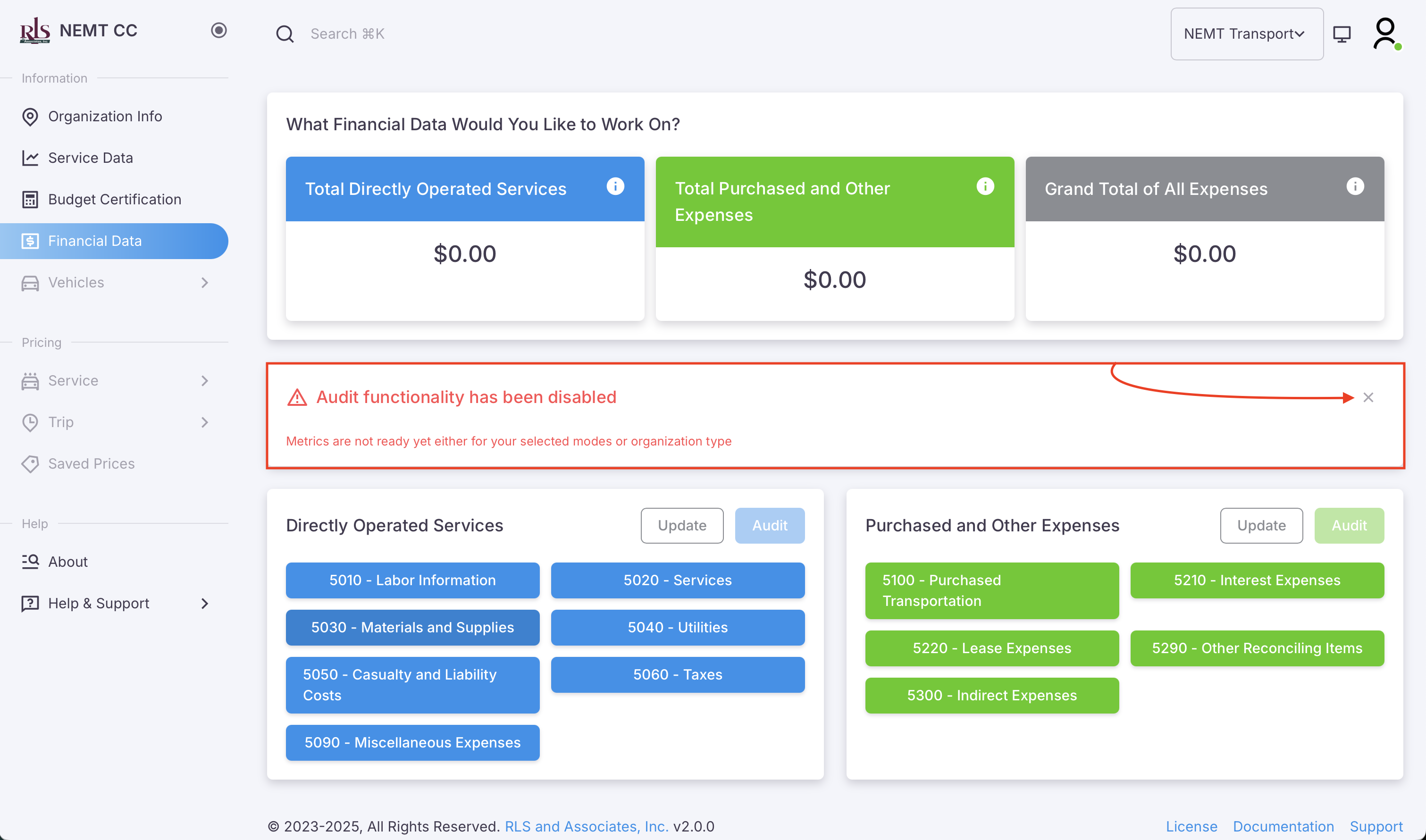
If your Organizational type DOES NOT have immediate access to the auditing feature, the system will generate a notification (image shown below) that states this feature is not available. To dismiss this notification, simply click the 'X' icon in the top right corner of the widget.
Financial Data
There are two main categories of financial information that the Transportation Cost Calculator App requires and within each of these categories are various sub-categories of financial information. In creating your account, this is easily the most difficult section to complete and in some cases you may not have all the data needed to enter into the system in which future releases of this software will help address these pain points.
The two main categories are;
- Directly Operated Services
- Purchased and Other Expenses
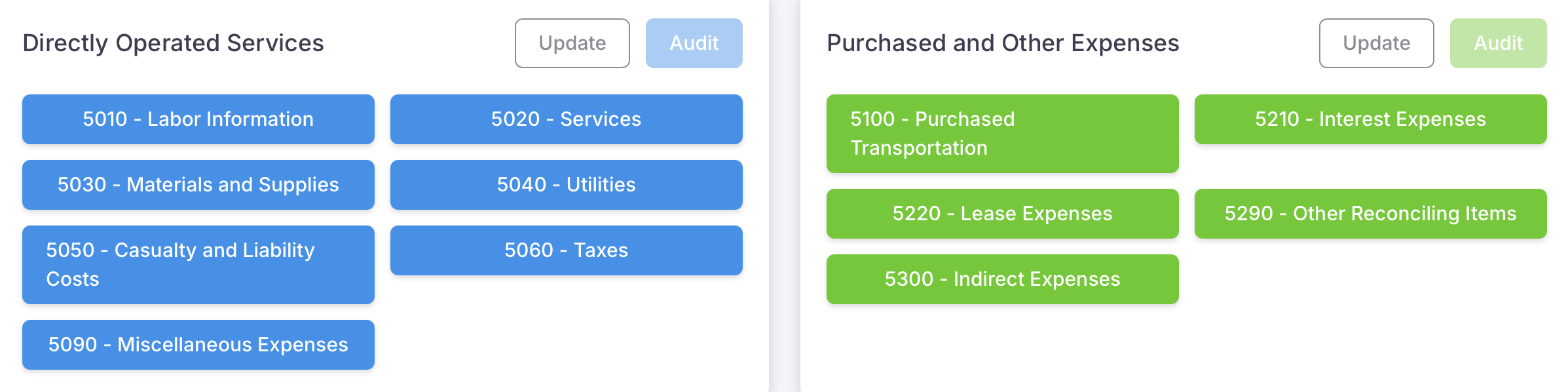
Each widget contains three options to the user;
- Financial expenses for each category of information
- Update button for existing information entered
- Audit Button to audit the category selected
Directly Operated Services
Overview
Operating expenses are expenditures incurred by a transit agency in providing public transportation service. Operating expenses for transit agencies generally include, but are not limited to; salaries and wages, fringe benefits, services, fuel and lubricants, vehicle maintenance, materials and supplies, utilities, insurance, taxes, interest, and leases.
NTD has developed the guidance in this section in order to give agencies a better understanding of which object class expenses they should report. The agency reports costs within each object class under four different functions: Vehicle Operations, Vehicle Maintenance, Facility Maintenance, or General Administration.
These functions and associated sub-functions are described in the section titled Operating Expenses: Functions. The following table illustrates the relationship between Operating Expenses Object Classes (addressed in this section) and Functions (addressed in the following section) by providing high-level examples. Note that examples in the following table are not exhaustive; for further details, please refer to this section, Operating Expenses: Object Classes and the following section, Operating Expenses: Functions.
Financial Categories
Each category of information will have even further subset of information to be input. For example, underneath 5010 - Labor exists 9 sub-categories of information that make up the category 5010 (Image Below).
- 5010 - Labor Information
- 5020 - Services
- 5030 - Materials and Supplies
- 5040 - Utilities
- 5050 - Casualty and Liability Costs
- 5060 - Taxes
- 5090 - Miscellaneous Expenses
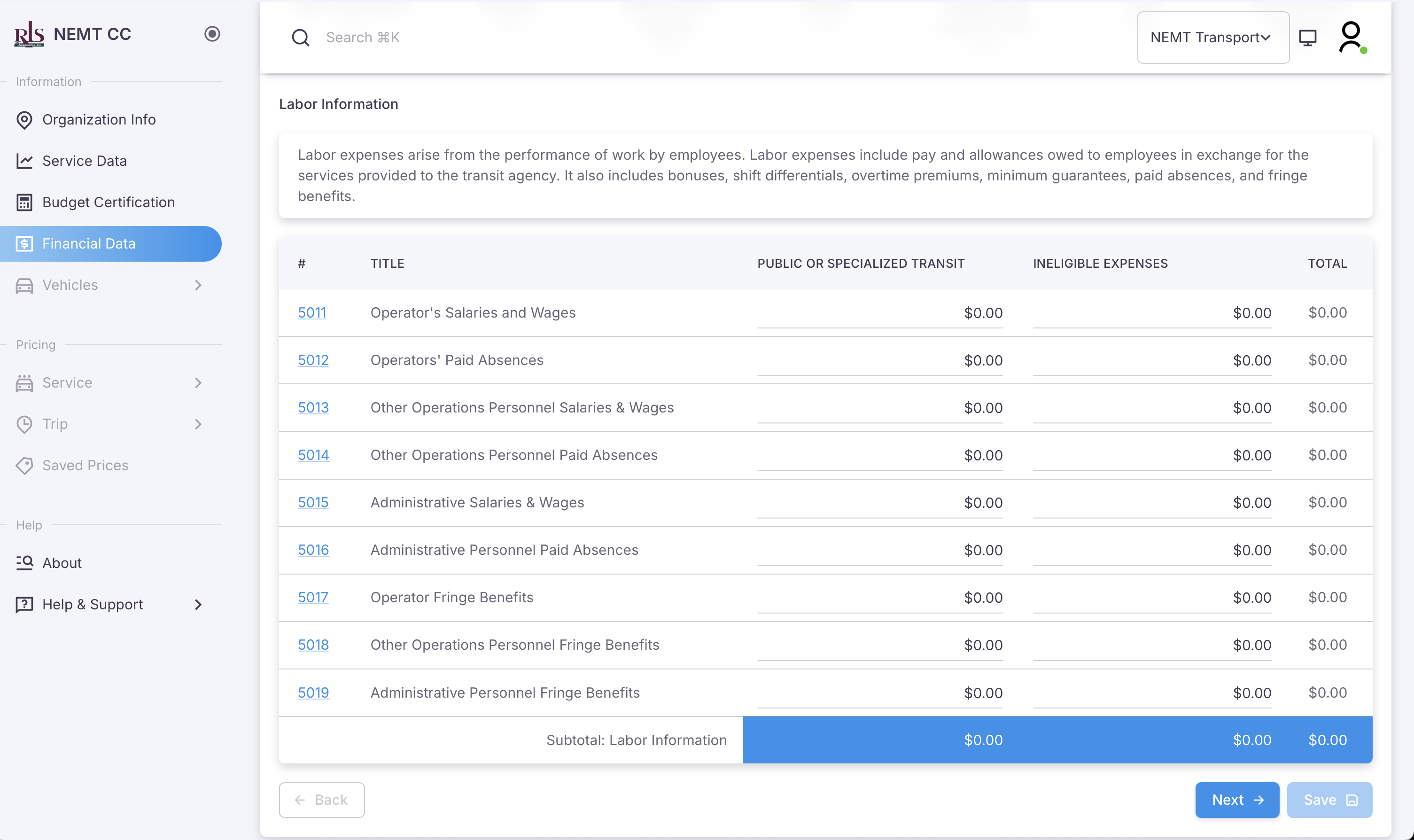 5010 - Labor and the subcategories of information that make up the category
As demonstrated on the image below, there are two columns of data to input as well as help text for each category of information.
- Help text: When the category is clicked, in the example below, 5011, a popup message will display with the relevant information to help you fill this information out properly.
- Org Mode Selected as Identified by your selection in Organization > Mode and can be updated at anytime.
- Ineligible Expenses
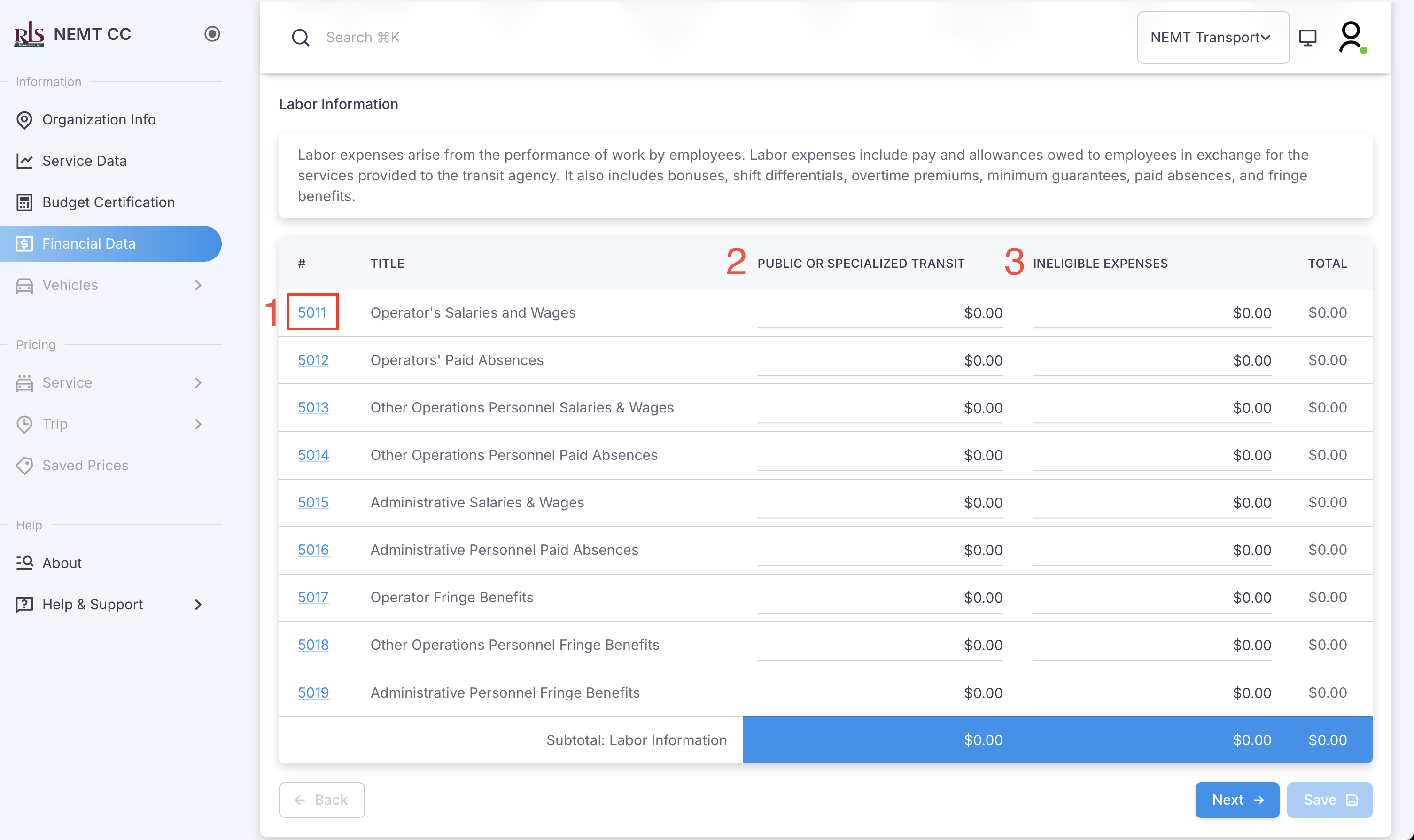 5010 Labor - page layout
Purchased and Other Expenses
Overview
Total Purchased and Other Expenses is calculated by adding all items accessed via the blue buttons which are: 5100 - Purchased Transportation, 5210 - Interest Expenses, 5220 - Lease Expenses, 5290 - Other Reconciling Items, 5300 - Indirect Expenses
Financial Categories
- 5100 - Purchased Transportation
- 5210 - Interest Expenses
- 5220 - Lease Expenses
- 5290 - Other Reconciling Items
- 5300 - Indirect Expenses
Audit & Finish
Once you have entered all relevant data in both main categories, Directly Operated Services and Purchased and Other Expenses, the system will prompt you to audit and finalize data if the audit feature is available to your org type at this time.
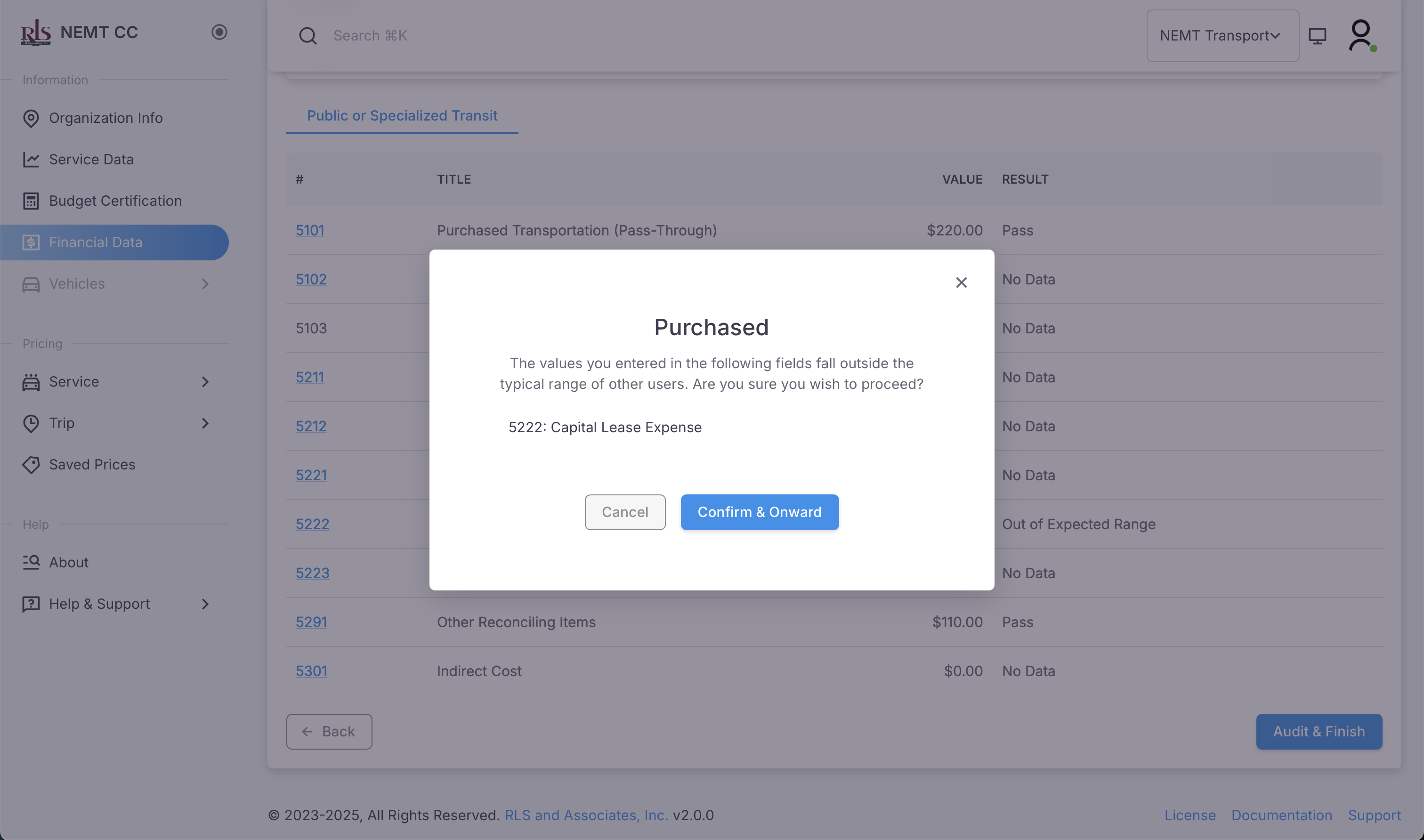
If there are values that are out of the expected range, the system will show a popup of the categories that need further review, or should receive review. Please see image below.