
Importing Trip Data
Overview
In v2.1, users have the ability to import previous run trips through the Cost Calculator in which the Fully Allocated Cost of those trips will calculate.
Import Trips
Importing previously run trips or trips that you want to run in the future is simple and fast; to import trips, please follow the steps outlined below.
1. Download Import CSV Template
The Cost Calculator allowed format for imports is a CSV file. To download the templated format, simply export a previously run trip from the results screen.
- Select a previously run trip by selecting the checkbox in the far left column (Image below)
2. Located at the bottom of the table, select the button labeled "Export Selection" (Image below)
1.
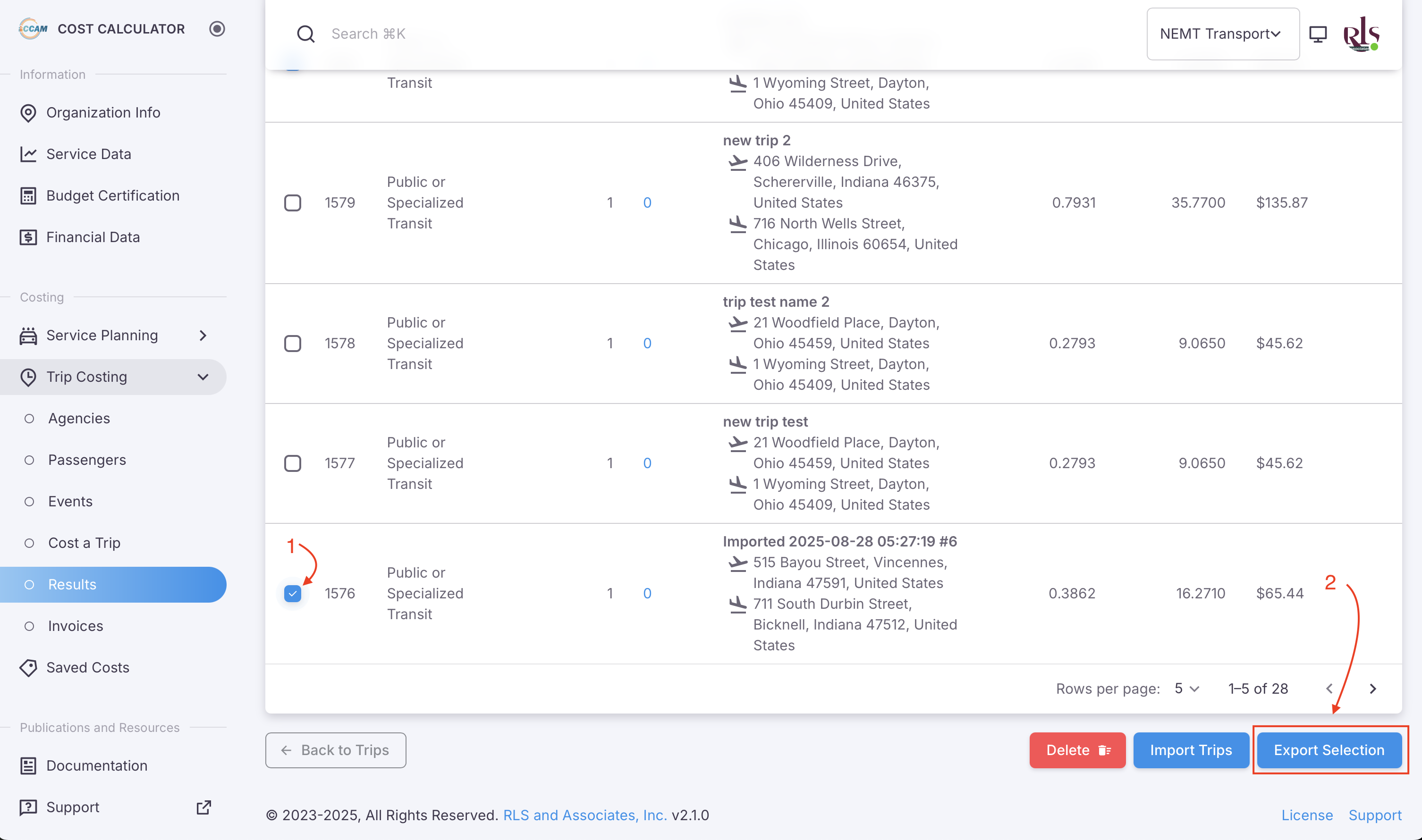 Quickly exporting a previously costed trip
2. Open and Edit the file
Once you have downloaded the CSV file, please open it. The exported file will have 7 columns of data however the trips being imported have not had the fully allocated cost calculated yet. You simply need to delete these three columns of information as show in the images below.
Original Downloaded CSV file 
Columns of Data to Delete  Delete the columns highlighted in yellow in the image above
3. Update the template with your information
There will be four rows remaining of information that you want to keep; shown in the table below.
| tripName | modeName | originText | destinationText |
| Example Trip Name | Public or Specialized Transit | 8080 High Pointe Drive, Newburgh, Indiana 47630, United States | 201 North 3rd Street, Vincennes, Indiana 47591, United States |
Do not edit the data in the row labeled - modeName. This will not upload the data properly and you will not be able to calculate the fully allocated cost on those trips.
Copy & Paste into a new CSV
| tripName | modeName | originText | destinationText |
| Example Trip Name | Public or Specialized Transit | Enter your origin address here | Enter your destination address here |