
Financial Data
Dashboard
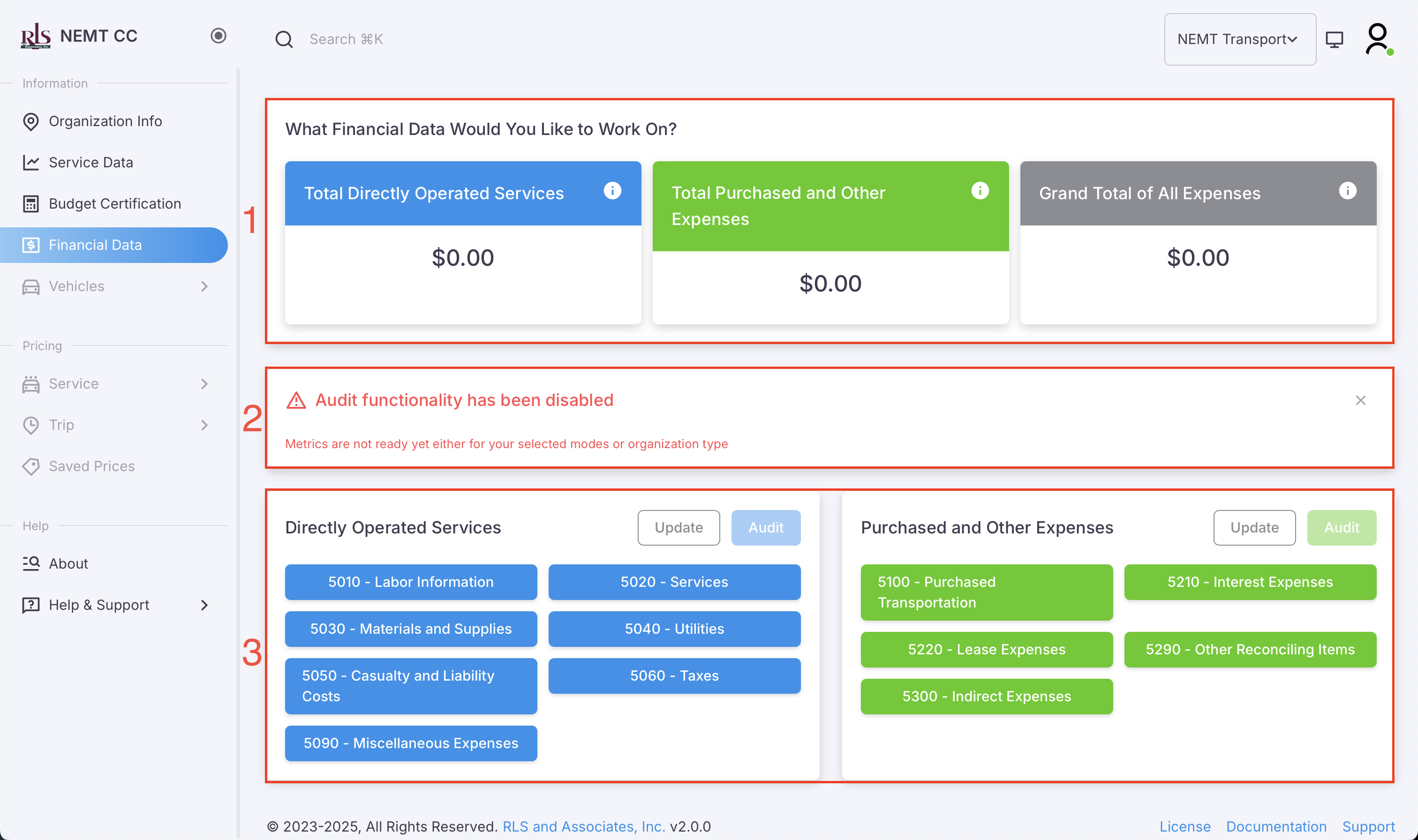
The Financial Dashboard page initially will consist of three sections; two of which will be permanently shown to you. In each section there are available features to help navigate you through the application.
The three sections of the financial dashboard page are as follows and shown in the image below;
- Financial Data Sub-total
- Audit Feature Notification (for disabled or organization types not currently allowed)
- Direct links to the various financial tables
Financial Data Overview
At the top of the page is the Financial Data Overview section which will show the sub-totaled amount for each section, listed below and the grand total of both expense categories;
- Total Directly Operated Services
- Total Purchased and Other Expenses
Section Features
- Total of the category or grand total of both categories
- Information on the category highlighted

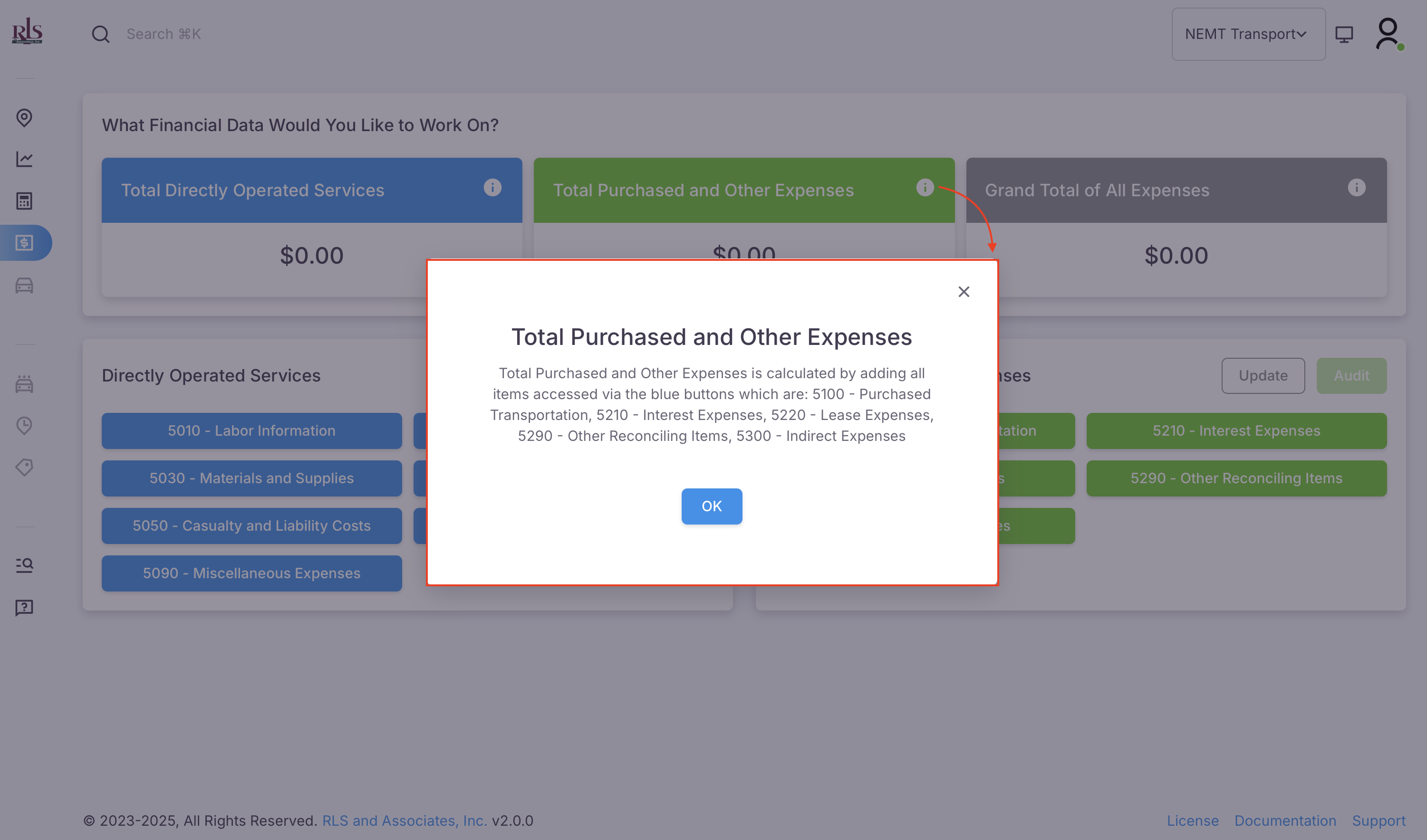
In the above image, if you click the 'info' icon in the upper right corner of widget box a popup will show (image below) and highlight the relevant information for that widget. In the example below, clicking the icon in 'Total Purchased and Other Expenses' will bring up the information relevant to that widget.
Audit Feature Notification (BETA)
THIS FEATURE IS CURRENTLY IN BETA and should not be used to validate the legitimacy of the data input. This feature has been enabled for user feedback in a production setting.
Not all Organization types are able to access the auditing feature. If you wish to test this feature, please visit the 'AUDIT' help documentation page by CLICKING HERE.
To help users with the validity of the data entered into the system, the NEMT CC App has an in-built auditing feature in which the system will notify the user with one of three prompts as to whether or not the entered financial data meets industry standards for that category.
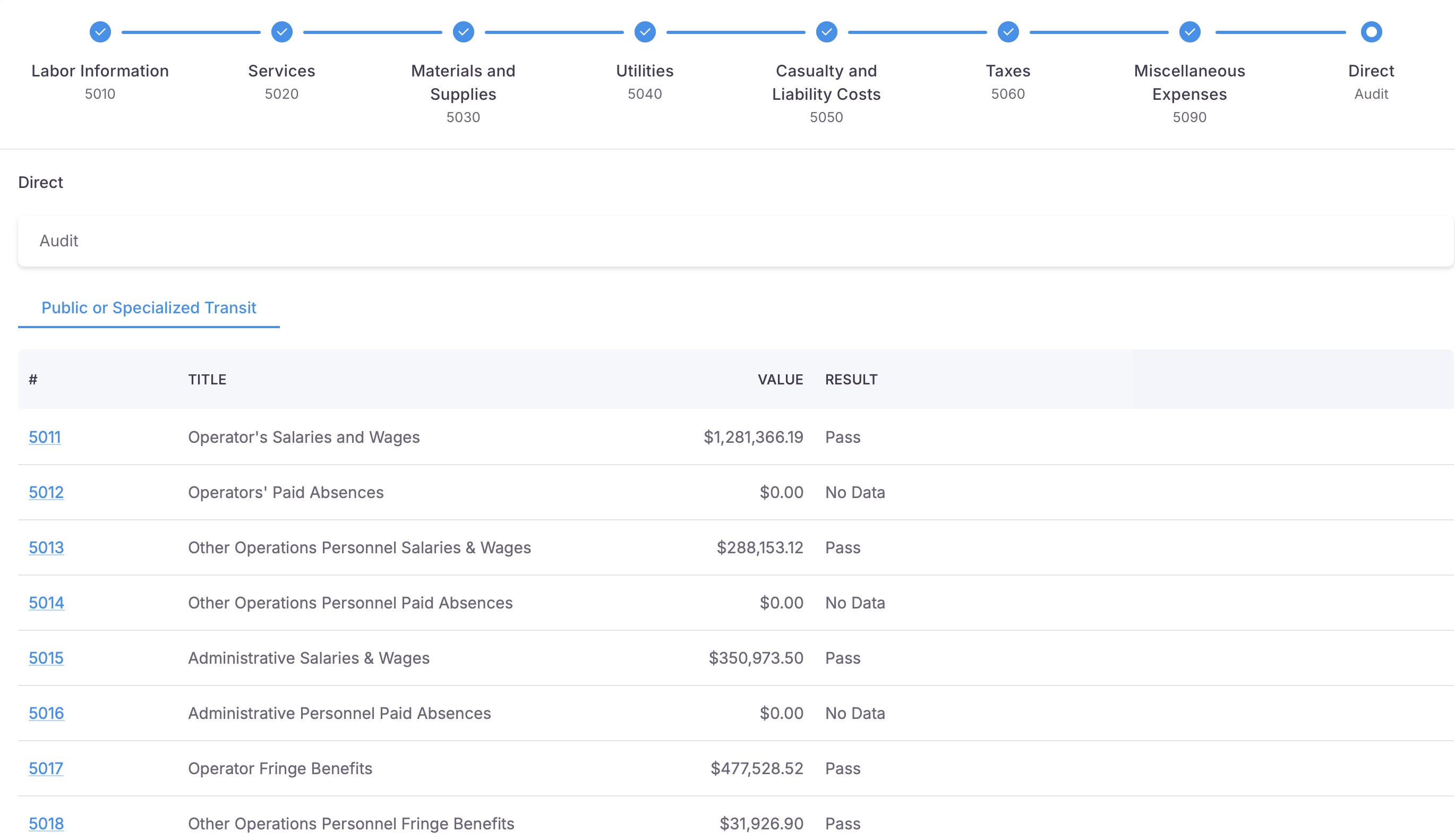
The three notifications available to users based on the data entered, these are as follows;
- Pass
- No Data
- Out of Expected Range
Financial Data Direct Links