Filtering Trip Data & Exporting
Overview
NOTE: The Events management section is currently in active development and is a ALPHA release.
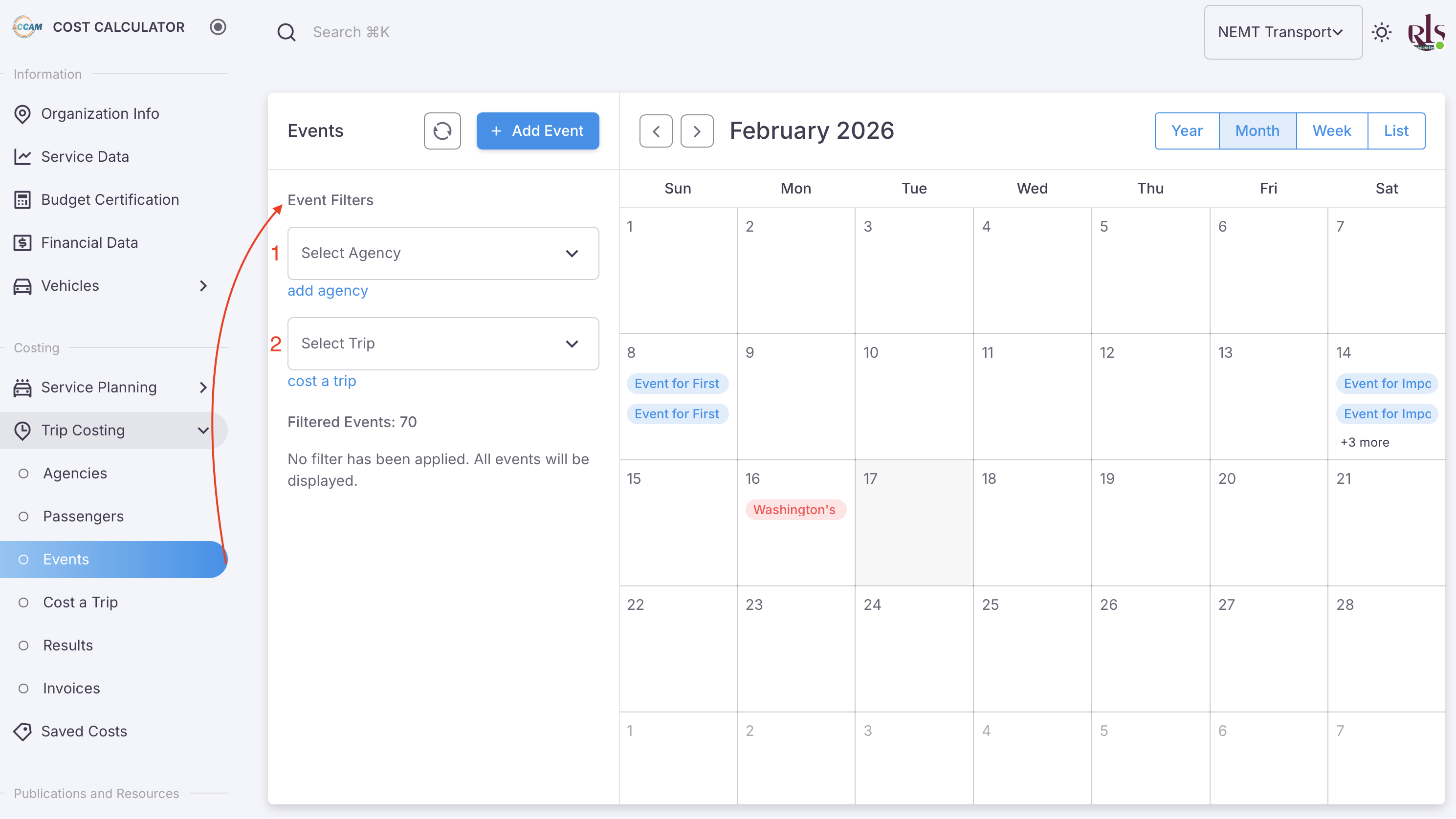
Trip data can currently be filtered by three categories from the events screen;
- Agencies
- Trips
- (Coming in the next release) Passengers
Applying Filter
As shown in the image above, you can select either Agency or Select Trip as your starting point. By selecting Agency for example; all trips related to that Agency will be filtered which can then be exported.
Filter by Agency
As shown in the image below, selecting Acme Co. will filter all events related to Acme Co. and then display the related trips under that Agency.
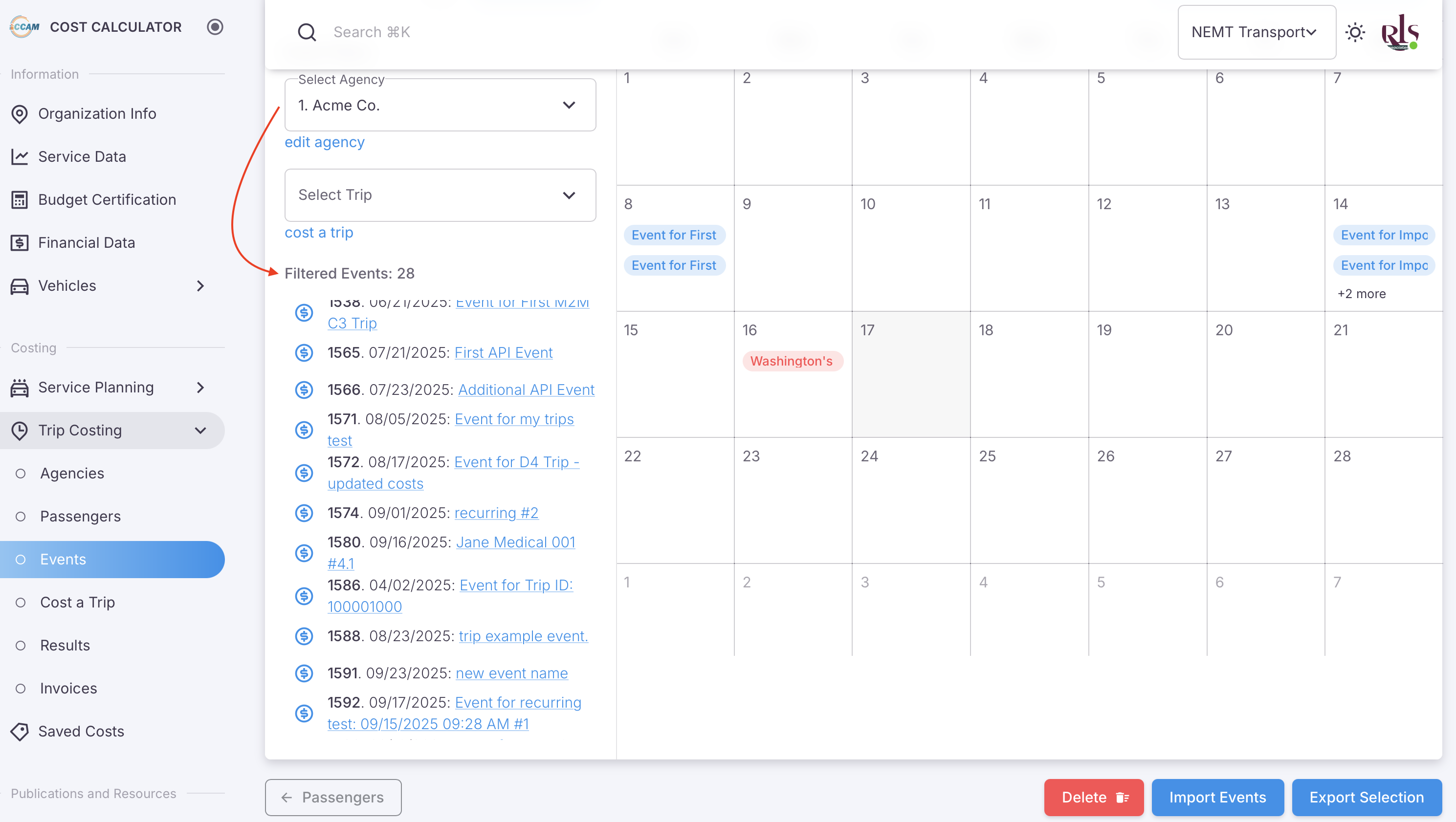
Once you have filtered the data you have a variety of options at your disposal.
- View passengers associated with trips to that Agency or Trip (Coming Soon)
- Export all trip data related to that Agency or Trip
- View and edit individual trips related to that Agency or Trip
View
Viewing Filtered Passengers
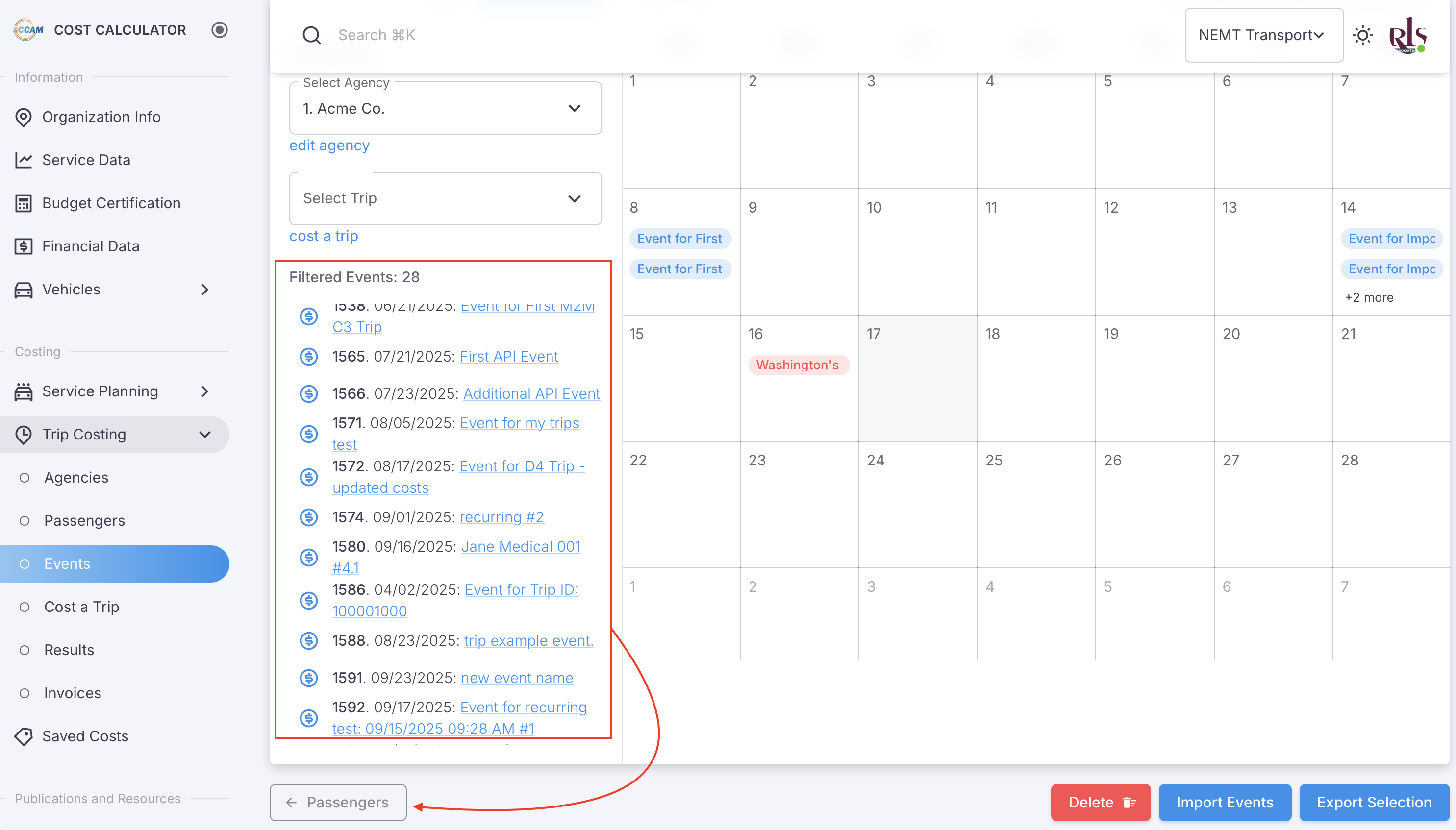
To view the desired filtered passenger list for an Agency or Trip, simply select the desired Agency or Trip you want to view the passengers for. Once selected, simply scroll to the bottom of the screen and select the button labeled 'Passengers' (shown in the image below).
Export Agency Filtered Trips
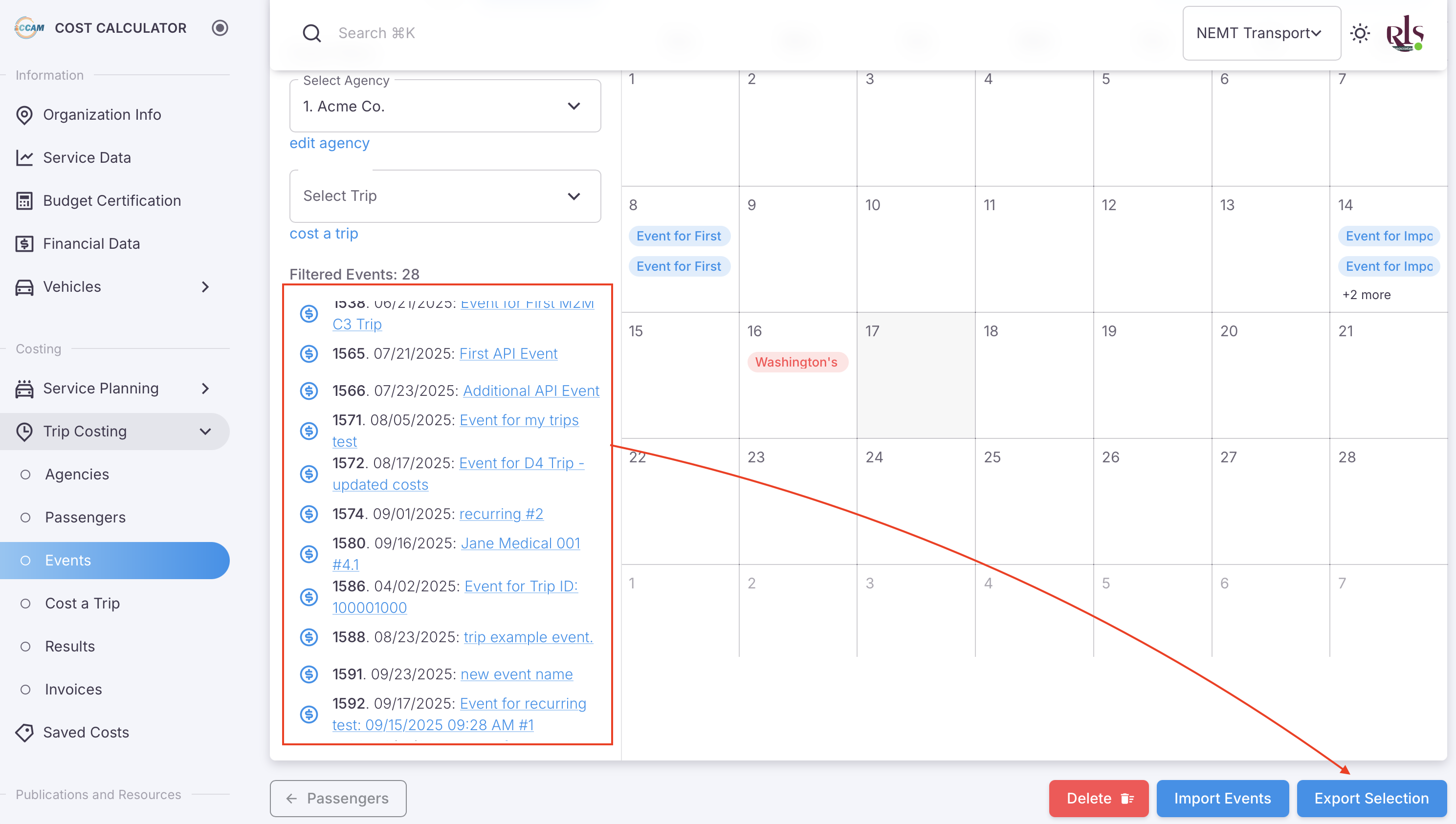
In the Agency Filtered example used for Acme Co., you can see in the image below that there are 28 filtered events for this agency. To Export this report to CSV simply select the agency, then any specified trips for that agency and then export your filtered results by clicking the button in the bottom right corner of the screen. Please see the image below.